
Solar PV Monitoring Networks: Troubleshooting Routing and Subnets
A comprehensive guide on network architecture, troubleshooting subnets, routing gateways, and DNS settings for industrial solar PV loggers.


Connecting a Huawei SmartLogger 3000 to the cloud via a cellular 4G router, such as the TP-Link TL-MR6400, often presents routing and subnet mismatch challenges for solar PV installers.
This post provides a quick troubleshooting guide and step-by-step instructions to resolve gateway mismatches and connect your SmartLogger to the Huawei FusionSolar management system (NMS).
1. Network Theory: Subnets, Gateways, and DNS
To understand why connection issues occur, we must look at how data travels across the network. A foundational framework for this is the OSI (Open Systems Interconnection) Model, which divides network communication into seven logical layers:
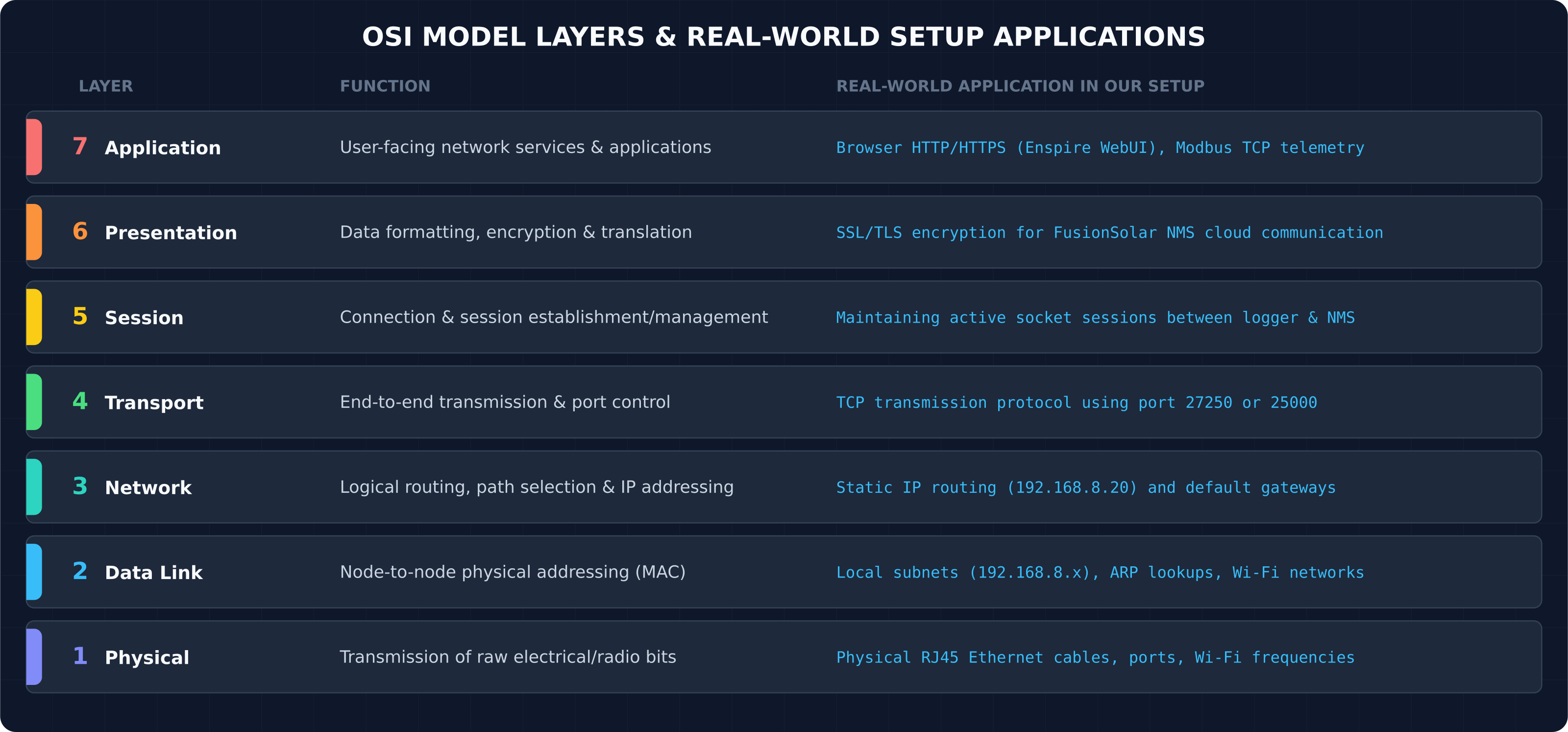
Figure 1: Visual representation of the 7 OSI layers mapping to our SmartLogger setup.
While a complete connection relies on all seven layers, troubleshooting connectivity issues almost always starts at the bottom three layers: Physical (Layer 1), Data Link (Layer 2), and Network (Layer 3). Let's examine these core concepts in detail:
Subnetting and Subnet Masks
An IP address consists of two parts: the network address and the host address. The Subnet Mask determines where the division lies. For example, with a standard subnet mask of 255.255.255.0 (or a /24 prefix):
Devices on the
192.168.8.xnetwork can only communicate directly with other devices on192.168.8.x.Devices on the
192.168.7.xnetwork are isolated and cannot see the192.168.8.xnetwork, even if they are plugged into the same switch.
The Role of the Default Gateway
When a device (like a SmartLogger) wants to send a packet to an IP address outside its local subnet (for example, to a cloud server on the internet), it cannot send it directly. Instead, it must forward the packet to a local coordinator called the Default Gateway (typically your router). For routing to work:
The Default Gateway's IP address must be on the same subnet as the device's local interface.
If your device has an IP of
192.168.8.20, its gateway must be something like192.168.8.1or192.168.8.2. It cannot be on another subnet like192.168.0.1.
Domain Name Resolution (DNS)
When connecting to a server like intl.fusionsolar.huawei.com, the logger must translate that domain name into a numeric IP address. The DNS Server is responsible for this lookup. If your DNS setting is incorrect or pointing to a dead gateway, the logger will fail to resolve the domain, resulting in connection timeouts.
Solar PV Telemetry Architecture: Local Modbus to Cloud WAN
To contextualize this network theory, consider the physical and logical flow of telemetry in a typical commercial solar installation:
Data Acquisition (Field Level): Solar inverters, grid meters, and weather sensors (measuring solar irradiance and module temperature) generate raw telemetry. These devices communicate locally via RS-485 serial daisy-chains using the Modbus RTU protocol, or via local switches using Modbus TCP.
Data Aggregation (Edge Level): The SmartLogger acts as the network coordinator (Modbus Master), polling the slaved inverters and sensors at regular intervals (e.g., every 5 minutes) to gather active power outputs, voltage readings, and environmental diagnostics.
Data Transmission (WAN Level): The SmartLogger packetizes this data, encrypts it via SSL/TLS, and routes it out of its WAN interface into a local router (like the 4G TP-Link). The router forwards these outbound TCP packets across cellular or fiber WANs to the FusionSolar Cloud Network Management System (NMS).
The "Local vs. Cloud" Diagnostic Trap
When the default gateway is misconfigured, a classic diagnostic mismatch occurs:
Locally: The SmartLogger successfully polls the inverters via local Modbus. The inverter status LEDs blink green, showing active generation.
Remotely: The central NMS cloud portal registers the entire solar plant as offline and triggers alarms because the SmartLogger's outbound TCP packets cannot route past the misconfigured local gateway.
The Trap: Field technicians often troubleshoot the physical cabling or serial Modbus parameters first, failing to realize the fault is a simple Layer 3 IP routing mismatch between the logger WAN port and the cellular router.
2. Case Study: Troubleshooting a Connection Mismatch
Let's look at a common scenario where a technician is onsite attempting to configure a SmartLogger using a laptop.
The Diagnostic State
To configure the SmartLogger without losing internet connectivity, the laptop is connected to two network ports simultaneously:
Port 1 (Physical LAN Port): Connected via Ethernet cable directly to the SmartLogger.
Laptop IP:
192.168.7.100(Static)Destination Local WebUI:
192.168.7.10
Port 2 (Wireless Wi-Fi Card): Connected wirelessly to the TP-Link Router.
Laptop IP:
192.168.8.100(DHCP)Default Gateway (Internet):
192.168.8.2
Laptop Dual-Routing Behavior
In this state, the laptop's operating system maintains two distinct routing paths:
Local Subnet Traffic: Packets bound for
192.168.7.xare routed directly out of the physical Ethernet interface to access the SmartLogger's local WebUI (Enspire).Internet-Bound Traffic: All external traffic (requests to NMS portals, search engines, etc.) is routed out of the wireless interface to the TP-Link router (
192.168.8.2), which serves as the default gateway. The SmartLogger is not a gateway router and does not provide internet access to the laptop over the LAN cable.
Running ipconfig on the PC displays the active configuration:
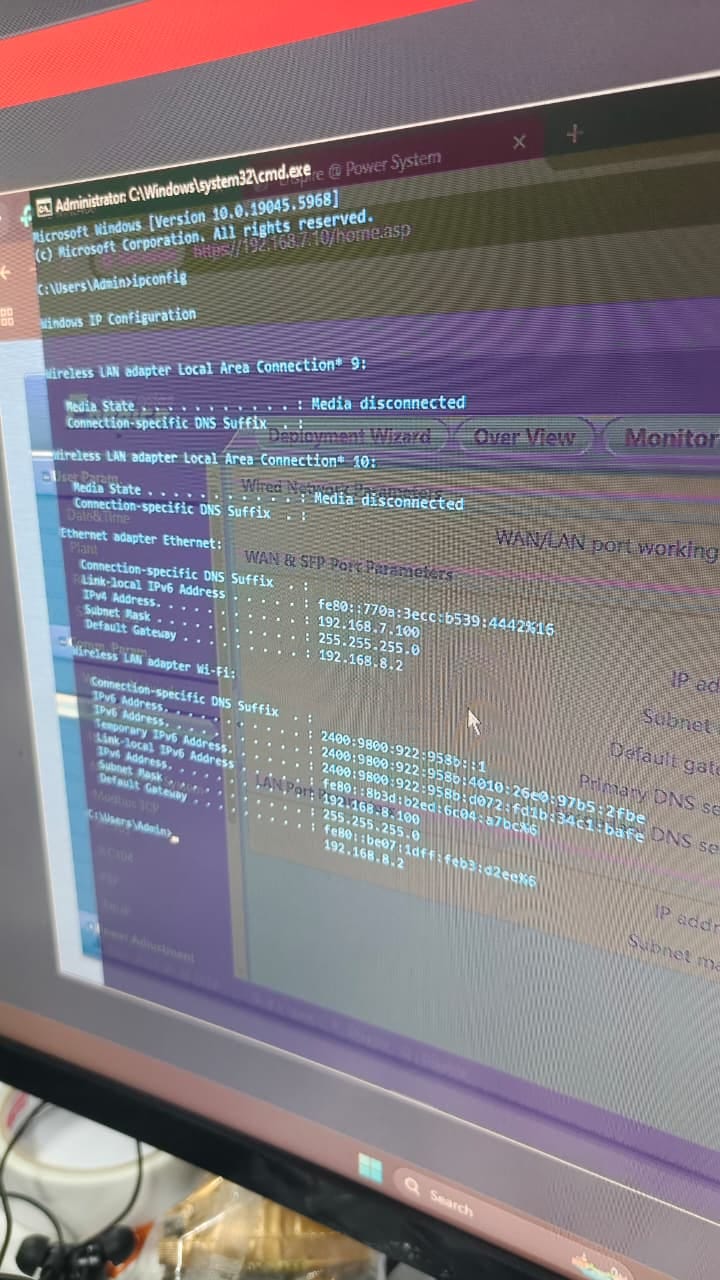
Figure 2: ipconfig output proving the TP-Link router resides on 192.168.8.2.
The Root Cause of Connection Failure
The SmartLogger's WAN port was configured with a static IP of 192.168.8.11, which matches the router's subnet (192.168.8.x). However, two critical parameters were misconfigured:
Default Gateway: Set to
192.168.8.1. Since the router is actually at192.168.8.2(as confirmed by the PC's Wi-Fi network gateway), all internet-bound packets from the logger were being sent to a non-existent IP address.Primary DNS: Set to
192.168.8.1, which also failed to resolve.
Subnet Conflict & Ambiguity (LAN vs. WAN)
By default, the Huawei SmartLogger's LAN interface is pre-configured with the IP address 192.168.8.10 (subnet 192.168.8.x). However, the TP-Link cellular router also routes traffic on the 192.168.8.x subnet.
If the SmartLogger's LAN port is left at its default IP, connecting its WAN port to the TP-Link router results in a subnet routing conflict—where both physical interfaces belong to the same IP subnet. Since a device cannot distinguish routing paths when two active interfaces share a subnet, the routing table becomes ambiguous. To resolve this, the installer must change the SmartLogger's LAN port IP to a different subnet, such as 192.168.7.10 (subnet 192.168.7.x). This isolates local configuration traffic from WAN internet traffic.
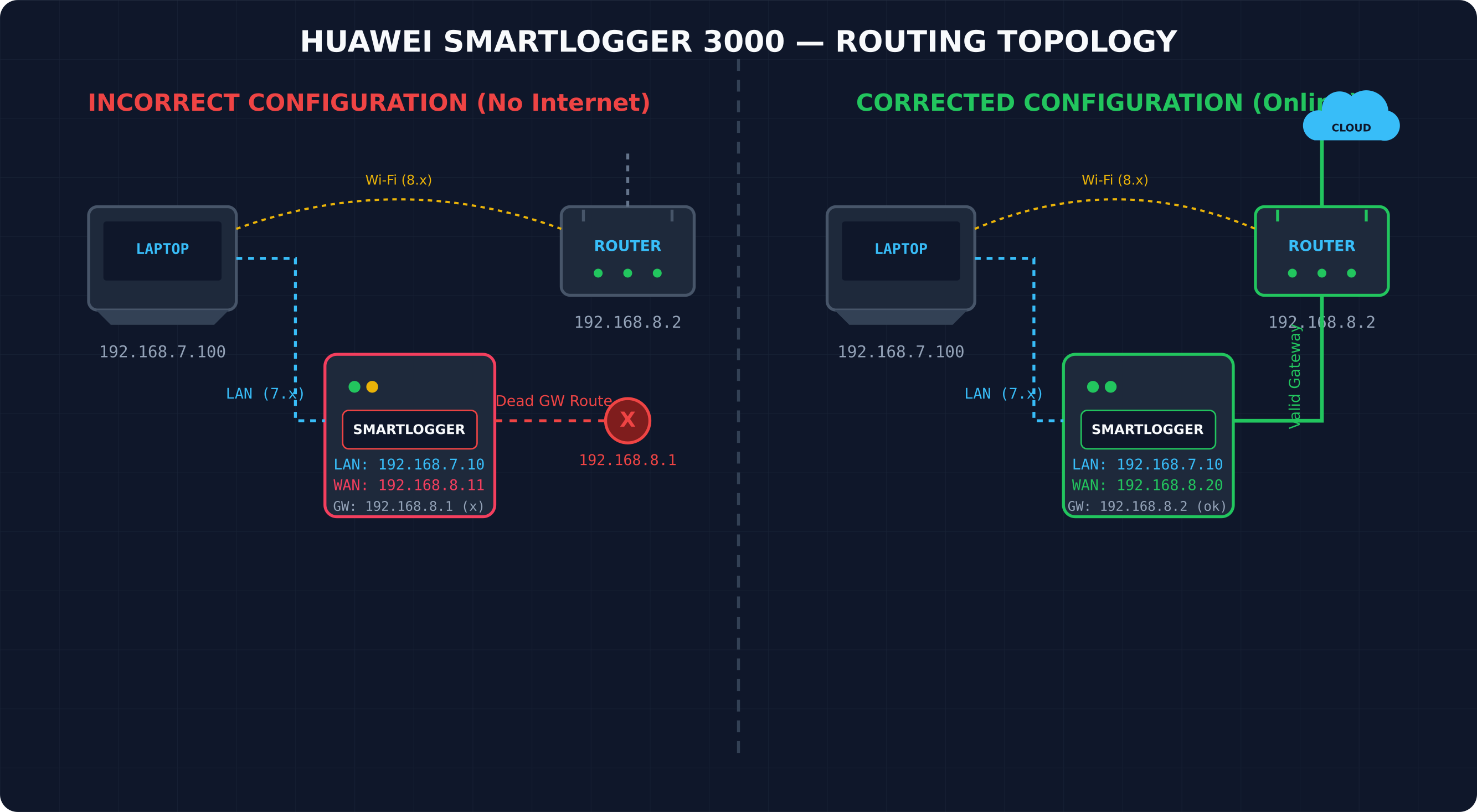
Figure 3: Visual mapping of the routing mismatch (left) and the corrected working topology (right).
3. Practical Steps: Establishing the Connection
To connect the SmartLogger 3000 to the internet through the TP-Link router, perform the following steps:
Step 1: Physical Cabling
Connect a standard RJ45 Ethernet cable from the WAN port of the SmartLogger to one of the yellow LAN ports of the TP-Link router. Keep your laptop plugged into the SmartLogger's LAN port to access the settings.
Step 2: Configure Wired Network Parameters
Log in to the Enspire WebUI (default LAN IP https://192.168.8.10 or your custom IP, e.g., https://192.168.7.10). Navigate to Settings > Comm. Param. > Wired Network and configure the WAN parameters:
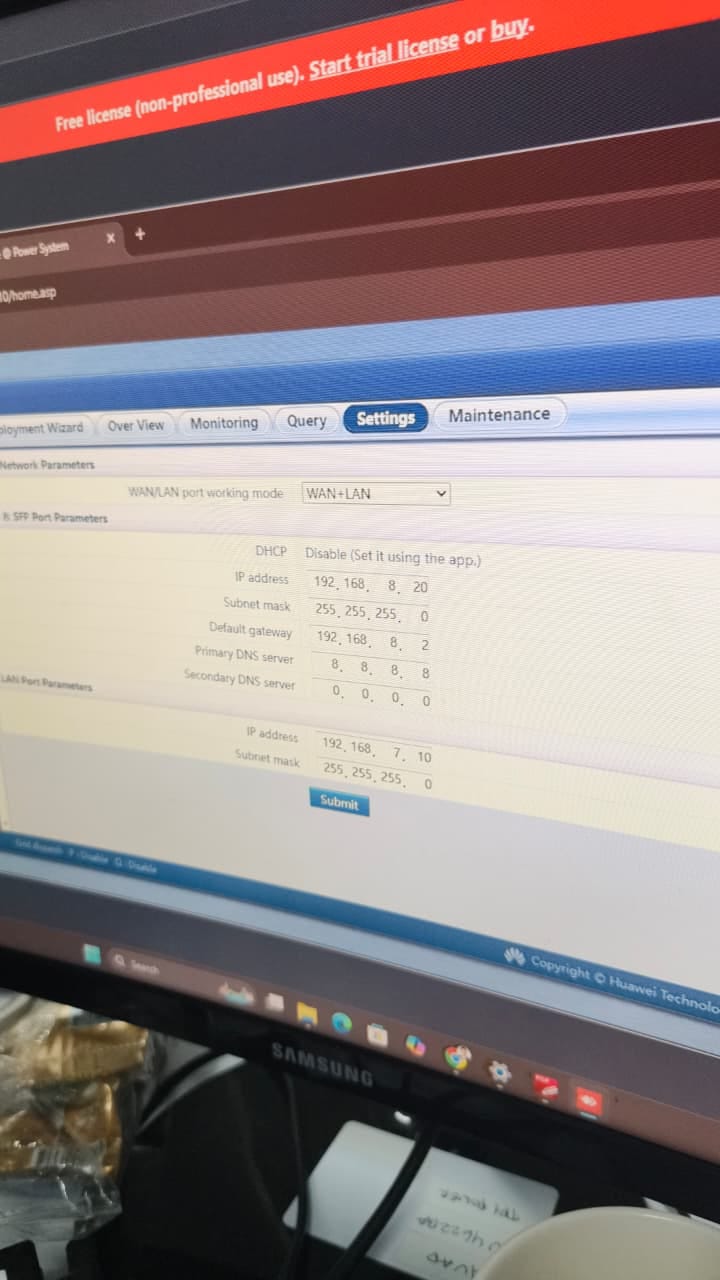
Figure 4: Wired Network configuration settings in Enspire.
WAN/LAN port working mode: Set to
WAN+LAN(default).IP Address: Set to
192.168.8.20(use a static IP outside the router's DHCP pool—typically.100to.199—to avoid IP conflicts).Subnet Mask:
255.255.255.0Default Gateway:
192.168.8.2(Matching the router's LAN IP).Primary DNS Server:
8.8.8.8(Google Public DNS).Secondary DNS Server:
8.8.4.4(Backup DNS).
Click Submit to save and apply the settings.
Step 3: Configure the Management System (NMS)
Navigate to Settings > Comm. Param. > Management System to connect the logger to the Huawei FusionSolar cloud portal:
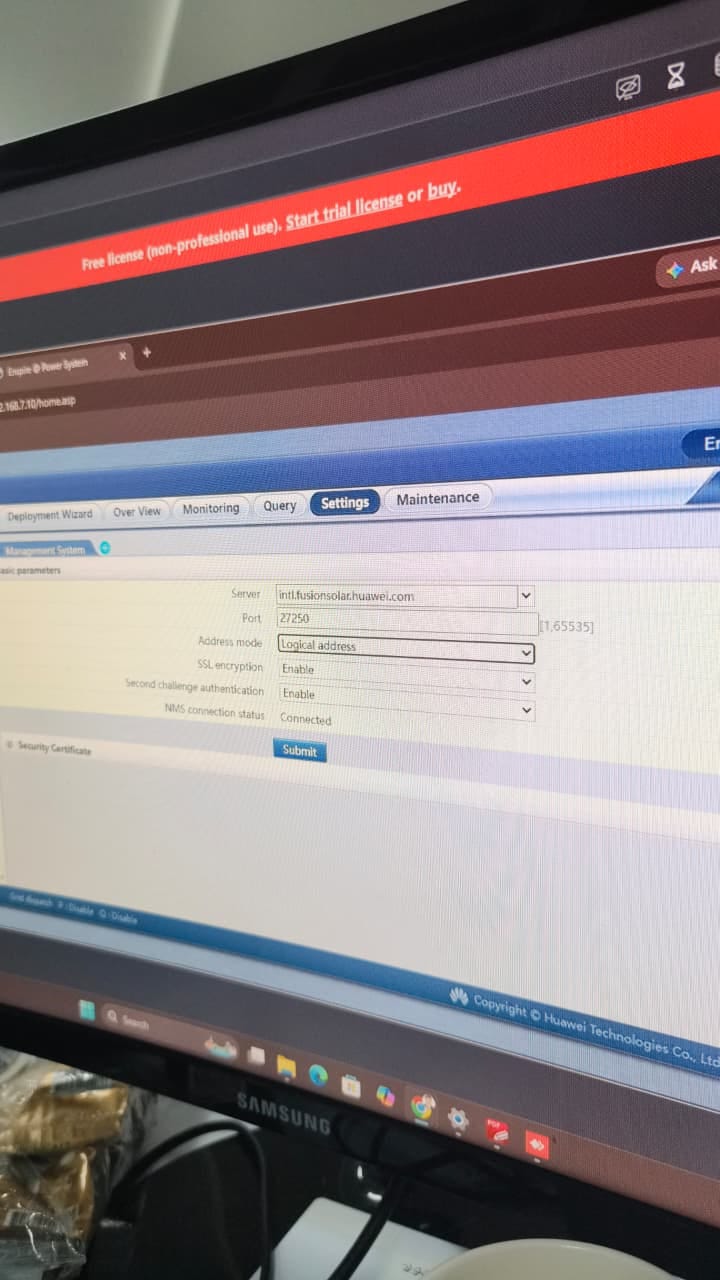
Figure 5: NMS settings showing successful connection status.
Server:
intl.fusionsolar.huawei.com(or regional servers likesg5.fusionsolar.huawei.comfor Southeast Asia).Port:
27250(or25000depending on the portal's SSL requirements).Address Mode:
Logical address.SSL Encryption:
Enable.
Click Submit. After a few moments, the NMS connection status should change from Connecting to Connected, verifying the logger is online and reporting telemetry successfully.
4. Troubleshooting Summary Checklist
When setting up solar monitoring network devices, always verify:
Router IP Address: Double-check your router's actual LAN IP rather than assuming it is
.1or.254.Static IP Safety: Choose static IPs that sit outside your router's active DHCP range to prevent random connection dropouts due to IP conflicts.
Gateway Congruence: Ensure your device's static gateway matches the router IP on the same subnet.
DNS Verification: Configure a public DNS (e.g.
8.8.8.8) if your router does not support local DNS forwarding.