
Running a Custom Laravel Project Locally
A comprehensive guide on setting up a Laravel project locally, covering environment configuration, troubleshooting Redis errors, and Vite integration.

Note: This guide is based on a custom Laravel + Vue.js + MySQL project setup. Your configuration may differ depending on your Laravel version, infrastructure, or environment (e.g., Docker, Sail, Redis, queue workers, etc.)
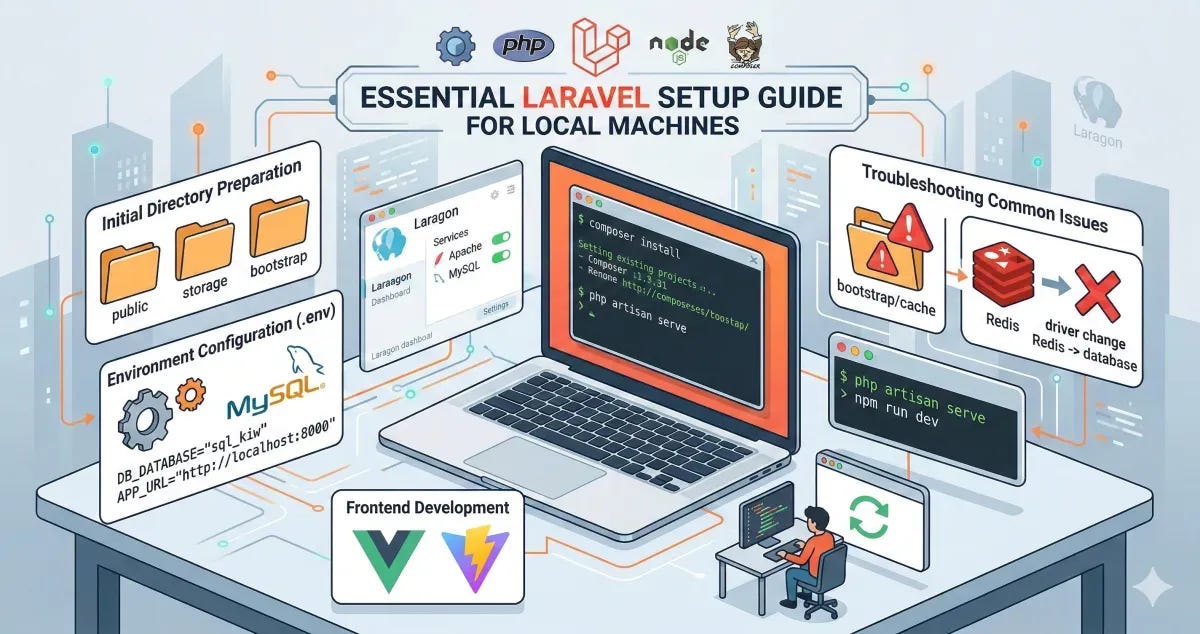
1. Clone and Prepare the Project
First, get the source code and initialize the environment file:
git clone repository-url
cd project-folder
cp .env.example .env
composer install
php artisan key:generate
Why Generate APP_KEY?
The APP_KEY is used by Laravel to encrypt user sessions and other sensitive data (like cookies and encrypted strings). Without it, your application will throw a 500 error or display:
No application encryption key has been specified.
Running php artisan key:generate automatically adds a secure random string to your .env file.
2. Initial Directory Preparation
Before running any commands, ensure that the following core directories exist in your project root. These are often excluded from version control but are vital for the application to function:
publicstoragebootstrap
3. Verify Environment Runtimes
Ensure your local environment has the necessary versions of PHP, Node.js, and NPM. Checking Composer is also crucial as it manages all your PHP dependencies.
php -v; composer --version; node -v; npm -v
Checking Composer ensures that the dependency manager is globally accessible and compatible with your PHP version.
4. Environment Configuration (.env)
Configure your .env file to point to your local development server:
APP_URL="http://localhost:8000"
ASSET_URL="http://localhost:8000"
Next, ensure your MySQL service is active and the database credentials match your local setup:
DB_CONNECTION=mysql
DB_HOST="localhost"
DB_PORT="3306"
DB_DATABASE="db"
DB_USERNAME="root"
DB_PASSWORD=""
5. Database Migrations and Data Seeding
Once your database is configured, you need to set up the tables and initial data.
If the project is new or has a clean migration history, run:
php artisan migrate
php artisan db:seed
Handling Complex Databases
If the database is complex or migration files are missing/broken, it's often easier to import a SQL dump from a working environment.
Exporting (from source):
mysqldump -u username -p database_name > backup.sql
Importing (to local):
mysql -u root -p sql_kiw < backup.sql
6. Installing Dependencies
Open your terminal (e.g., Laragon's built-in terminal) and navigate to your project directory.
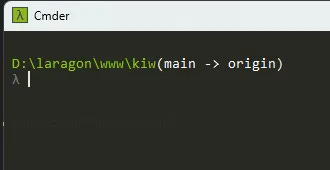
Install the PHP dependencies using Composer (if you haven't already in step 1):
composer install
7. Troubleshooting Common Issues
Storage & Bootstrap Permission Issues
If you encounter "Permission denied" errors when Laravel tries to write logs or cache, you may need to grant write access to specific directories:
chmod -R 775 storage
chmod -R 775 bootstrap/cache
Bootstrap Cache Errors
If you encounter errors related to the bootstrap directory during installation:
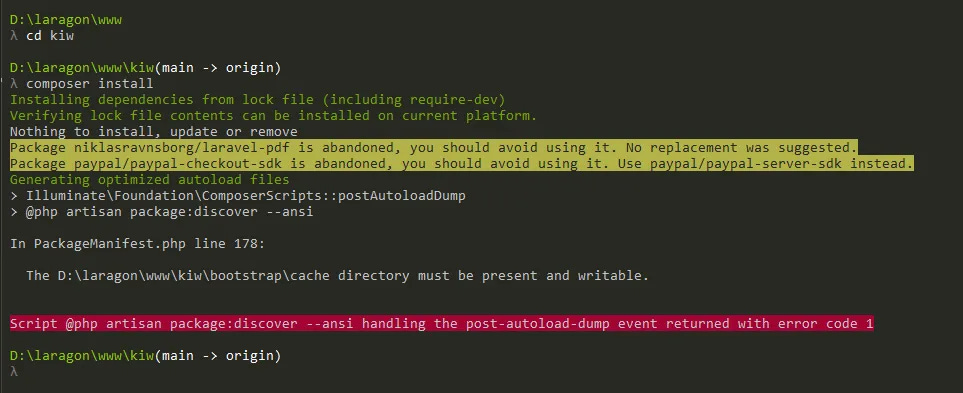
A common fix is to ensure the bootstrap/cache directory exists and is writable. In some cases, copying the bootstrap folder structure from a fresh Laravel installation or a known working environment can resolve initialization issues.
Redis Connection Issues
If your local environment (like a default Laragon setup) does not have Redis installed, you might see the following error during package:discover:
Script @php artisan package:discover --ansi handling the post-autoload-dump event returned with error code 1
To fix this, switch your drivers to use the file or database system in your .env file:
From:
CACHE_DRIVER=redis
SESSION_DRIVER=redis
QUEUE_CONNECTION=database
To:
CACHE_DRIVER=file
SESSION_DRIVER=file
QUEUE_CONNECTION=sync
After updating the configuration, run the installation again to confirm success.
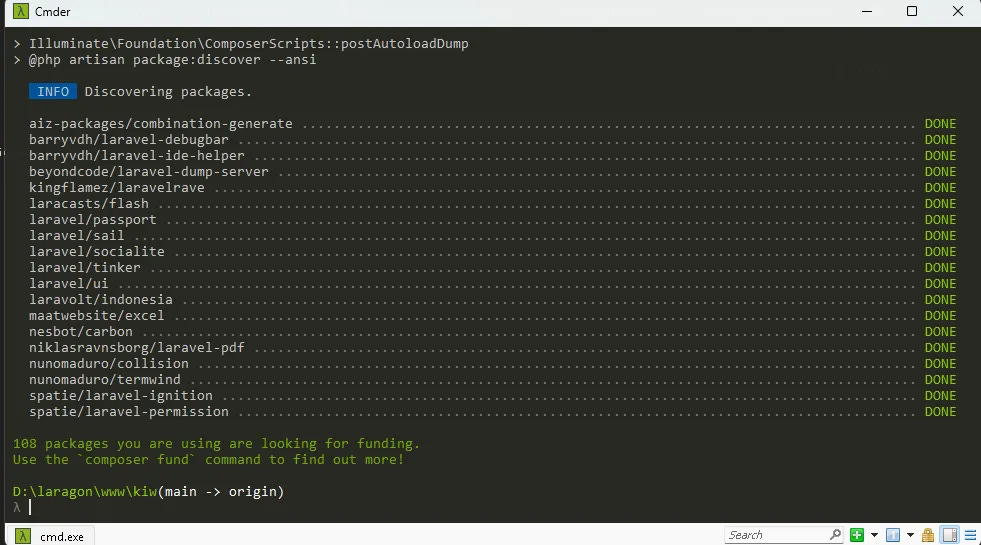
8. Serving the Application
Start the local development server:
php artisan serve
If the application fails to load, enable debug mode in .env to see detailed error messages:
APP_DEBUG=true
To ensure you are not seeing stale configurations, run the following maintenance commands:
php artisan config:clear
php artisan cache:clear
php artisan view:clear
php artisan route:clear
9. Frontend Development (Vite & Vue.js)
For projects using Vue.js and Vite, you must install the Node dependencies and start the development server.
Install dependencies:
npm install
# Use --legacy-peer-deps if you encounter version conflicts
# npm install --legacy-peer-deps
Vite Environment Variables
Some projects rely on specific environment variables in the frontend. You might need to add:
VITE_APP_NAME="${APP_NAME}"
This allows Vite to access your Laravel application name during the build process or development.
Run the Vite development server:
npm run dev
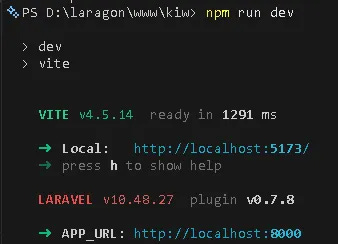
The frontend source files are primarily located in resources/js. With Vite running, any changes you make to these files will be reflected instantly in your browser.
Quick Setup Checklist
[ ] Clone repository
[ ] Create
.envfrom.env.example[ ] Run
composer install[ ] Run
php artisan key:generate[ ] Configure
DB_*in.env[ ] Run
php artisan migrate --seed(or import SQL)[ ] Run
npm install[ ] Run
npm run dev[ ] Run
php artisan serve