

Note: For hero image is AI generated
I recently set out to connect two external monitors to my MSI Modern 14 C5M laptop to expand my workspace for coding and data engineering tasks. If you own this laptop and have tried using a standard USB-C dock, hub, or USB-C to HDMI adapter, you’ve likely run into the same frustrating roadblock: the USB-C port refuses to output any video signal, leaving your secondary monitor displaying "No Signal."
In this guide, I will explain why this hardware limitation exists on the MSI Modern 14 C5M, the specific active adapter solution I tested and verified to resolve it, and the cable management patterns you can use to keep your workspace clean.
1. Hardware Compatibility: The Root of the Problem
The MSI Modern 14 C5M is a cost-effective, portable machine, but to hit its price point, MSI made specific compromises on the I/O interface. When you inspect the physical ports on the laptop, here is what is actually available:
1x HDMI Port: Standard output supporting video up to 4K @ 30Hz.
1x USB 3.2 Gen 2 Type-C Port: Supports data transfer and Power Delivery (PD) charging, but lacks DisplayPort Alternate Mode (Alt Mode).
1x USB 3.2 Gen 2 Type-A Port: High-speed data interface (left side).
2x USB 2.0 Type-A Ports: Legacy data interfaces (right side).
Because the built-in USB-C port is data-and-power-only and lacks internal video routing, it cannot transmit native video signals. Standard passive adapters or hubs that simply convert USB-C pins to HDMI will never work on this machine.
The Solution: Active Graphics Adapters (DisplayLink)
To run a second external monitor, you must bypass the laptop's physical GPU routing. You can achieve this by using an active adapter powered by a chipset like DisplayLink or Silicon Motion (SMI).
Unlike passive cables, an active adapter contains a dedicated microchip that compresses the video feed into standard USB data packets. These packets are sent over the USB bus, and the adapter’s internal chip unpacks them to drive a native HDMI or DisplayPort signal.
For my setup, I tested a USB-A 3.0 to Dual HDMI Active Adapter utilizing the DisplayLink chipset.
2. Detailed Connection & Cabling Diagram
Connecting the hardware requires separating your native video run from your active USB run. The diagram below illustrates how I routed the connections:
======================================================================================
                                DETAILED CONNECTION DIAGRAM
======================================================================================

                       [ MONITOR 1 ]                       [ MONITOR 2 ]
                       +-----------+                       +-----------+
                       | HDMI Port |                       | HDMI Port |
                       +-----+-----+                       +-----+-----+
                             |                                   |
                             | (HDMI Cable)                      | (HDMI Cable)
                             |                                   |
                             v                                   v
                             |                           +-------+-------+
                             |                           | ACTIVE ADAPTER|
                             |                           | (DisplayLink/ |
                             |                           | SiliconMotion)|
                             |                           +-------+-------+
                             |                                   |
                             |                                   | (USB Type-A Connector)
                             |                                   |
    +------------------------v-----------------------------------v-------------------+
    |                                                                                |
    |                           MSI MODERN 14 C5M (LAPTOP)                           |
    |                                                                                |
    |   [LEFT SIDE PORTS]                                        [RIGHT SIDE PORTS]  |
    |   +---------------------------------------------+          +---------------+   |
    |   | [DC-In]   [HDMI]   [USB-C]   [USB-A 3.2]    |          | [USB-A] [USB-A] |   |
    |   | (Power)  (Video 1) (Data/PD) (Active Adapter|          | (Mouse/ (Other  |   |
    |   |                      only)     goes here)   |          |  Kbd)    Data)  |   |
    |   +---+---------+-------------------+-----------+          +---------------+   |
    |       |         |                   |                                          |
    +-------|---------|-------------------|------------------------------------------+
            |         |                   |
            v         v                   v
        (To Wall) (To Mon 1)          (To Adapter)
Installation Workflow
Primary Display (Monitor 1): Connect a standard HDMI cable from the laptop's left-side HDMI port directly to the HDMI input of your first monitor. This uses your system's integrated graphics directly.
Secondary Display (Monitor 2): Connect your active USB-A to HDMI adapter to the USB 3.2 Gen 2 Type-A port on the left side of the laptop. Plug an HDMI cable from the adapter into your second monitor.
Driver Configuration: Active adapters require system drivers to compress the video stream. For DisplayLink-based adapters, download and install the latest Manager software from the official Synaptics DisplayLink Downloads page. For Silicon Motion adapters, fetch the SMI graphics driver from the manufacturer's site.
3. Workstation Reference & Visuals
Here is how the setup and diagnostics look in practice:
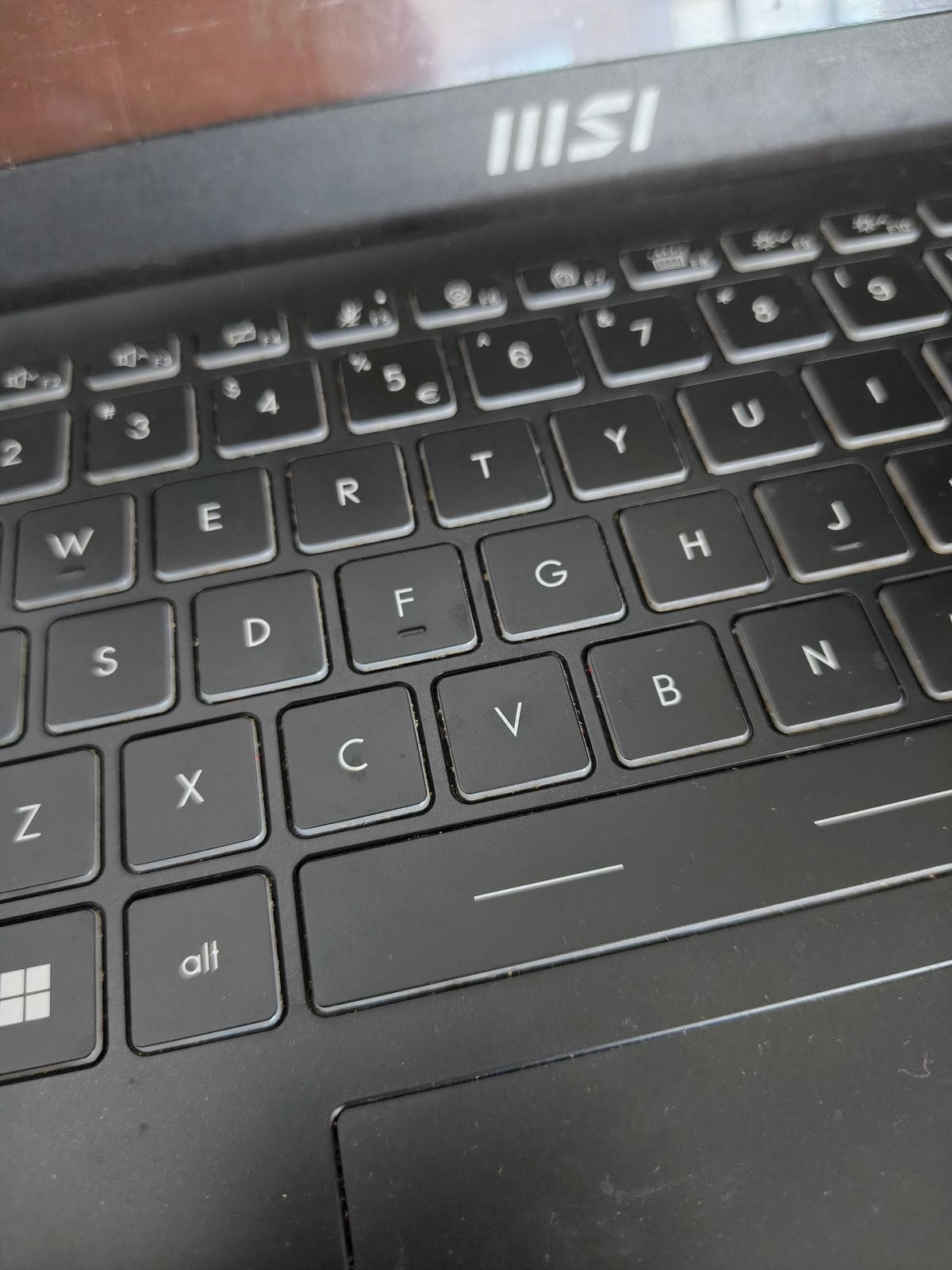
Figure 1: Close-up of the built-in keyboard on the MSI Modern 14 C5M.
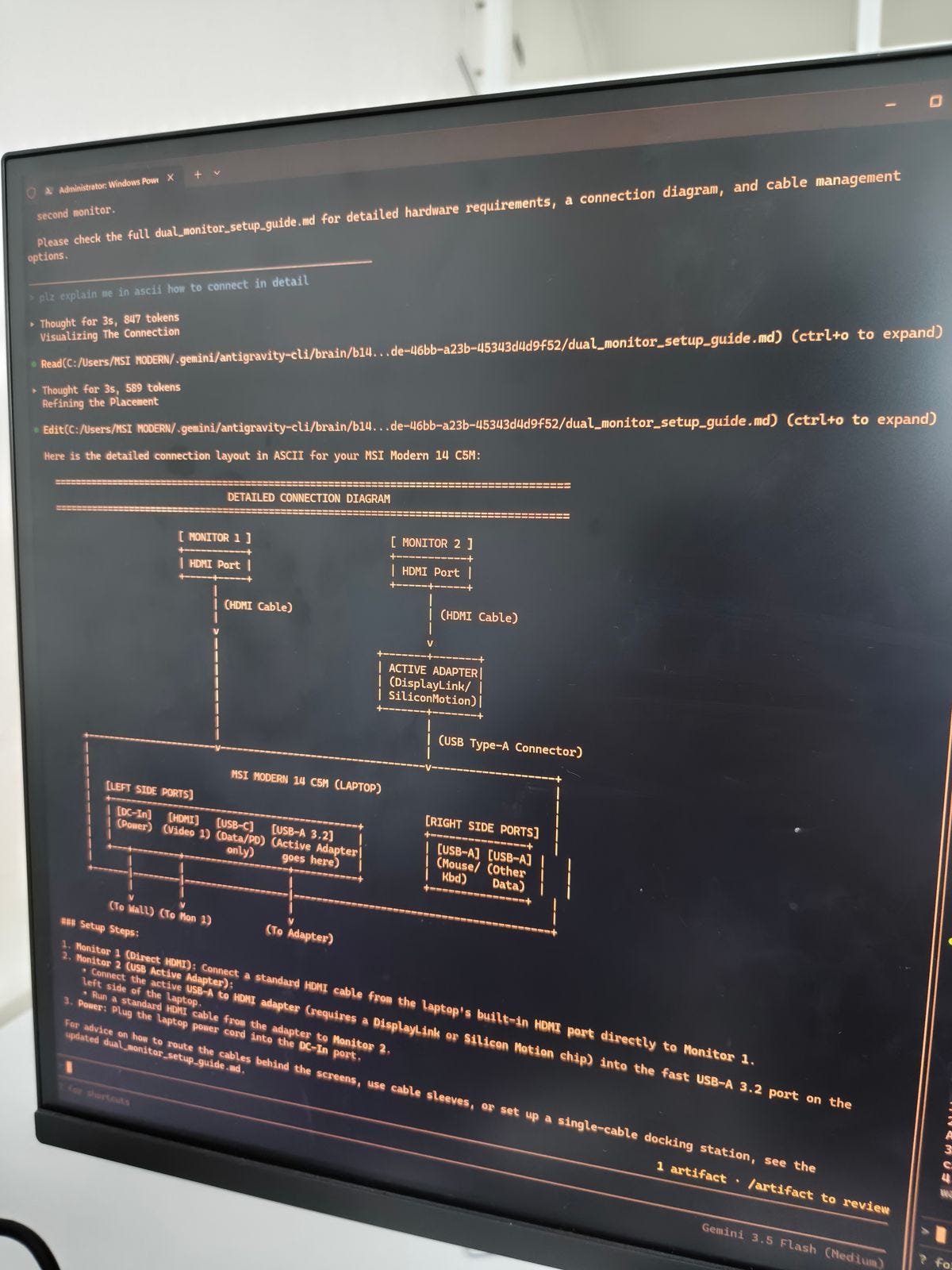
Figure 2: Display output showing the connection schematic rendered in the terminal.
4. Performance Trade-offs & Limitations
While active adapters are a lifesaver for I/O-restricted laptops, they are not a perfect replacement for native GPU ports. Before deploying this setup, keep these engineering trade-offs in mind:
CPU Overhead: Because the video stream is compressed via software before transmission, your CPU handles the encoding work. On the MSI Modern 14 C5M, this results in a persistent CPU utilization overhead (usually 3% to 8% depending on screen activity).
Latency: Because of the compression-decompression cycle, there is a minor input lag (typically 20ms to 50ms) on the second monitor. This is imperceptible when writing code, reading documentation, or managing spreadsheets, but it is highly noticeable in fast-paced 3D gaming or precise video timeline editing.
HDCP Support: Many active adapters do not support HDCP (High-bandwidth Digital Content Protection). Streaming apps like Netflix, Prime Video, or Disney+ may display a black screen if played on the second monitor.
5. Cabling Management Options
Routing multiple adapters, power cables, and HDMI cords out of a 14-inch laptop can quickly clutter your desk. I suggest two approaches to clean up the workspace:
The Hidden Adapter Pattern (Budget-Friendly)
Tuck the Hardware: Mount the active USB-A adapter to the underside of your desk or behind the monitor arm using heavy-duty Velcro or double-sided tape.
Cable Sleeving: Group the laptop power cable, native HDMI cable, and the USB adapter cable into a single flexible cable sleeve. This consolidates three loose lines into a single, clean bundle running to the left side of your laptop.
The DisplayLink Docking Station (Recommended)
If you frequently disconnect your laptop to travel, unplugging three cables every time becomes tedious.
Single-Cable Operation: Use a DisplayLink Universal Docking Station (such as models from Plugable, Wavlink, or Dell).
Consolidation: Connect both monitors, your keyboard, mouse, and ethernet directly to the dock. The dock then connects to your laptop's USB-C port. Since the MSI Modern 14 C5M's USB-C port supports Power Delivery, a high-quality dock can charge the laptop and transmit dual-monitor video data simultaneously over that single cable connection.
Conclusion
The video limitations of the MSI Modern 14 C5M are easily bypassed once you understand the difference between passive Alt-Mode converters and active DisplayLink chipsets. By offloading the secondary video pipeline to an active adapter, you can run a fully extended dual-monitor setup with minimal trade-offs, creating a highly productive workstation for engineering and development work.
Thanks for reading. See you in the next lab.