
Fixing WSL Ubuntu Setup & Hostname Issues
Step-by-step guide to install Ubuntu on WSL, fix hostname errors, and an honest comparison between WSL and Kali in VirtualBox.


With Windows Subsystem for Linux (WSL), running a Linux environment on Windows is no longer complicated. The setup is usually smooth until a small configuration detail, like a hostname mismatch, suddenly throws an unexpected and confusing error such as:
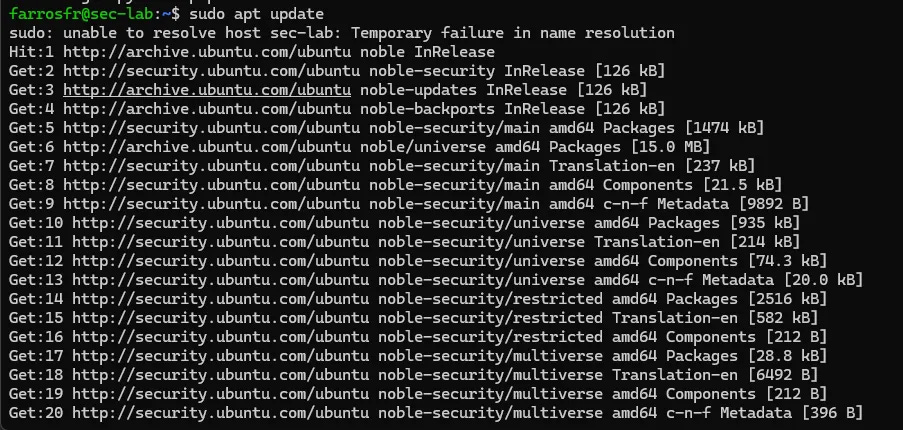
sudo: unable to resolve host <hostname>: Temporary failure in name resolution
In this guide, I’ll walk through:
Installing Ubuntu on WSL
Setting it as the default distribution
Creating a proper user
Changing the hostname cleanly
Fixing the “unable to resolve host” error
And finally: why I use WSL instead of Kali Linux in VirtualBox — including the downsides.
1. Installing Ubuntu on WSL
First, check existing WSL distributions:
wsl -l -v
If Ubuntu is not installed:
wsl --install -d Ubuntu
After installation completes, launch it:
wsl
or open via windows start.
You’ll be prompted to create a default Unix user account. Choose a clean and professional username (for example, your GitHub handle). This becomes your Linux home directory:
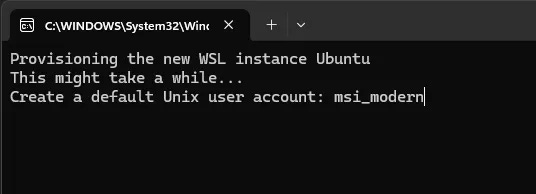
/home/yourusername
2. Setting Ubuntu as Default
If Docker Desktop is currently your default WSL distro:
wsl -s Ubuntu
Verify:
wsl -l -v
The asterisk (*) should now be next to Ubuntu.
3. Changing the Hostname Properly
To rename your machine, example:
sudo hostnamectl set-hostname sec-lab
Restart WSL:
wsl --shutdown
Reopen WSL and your prompt should look like:
username@sec-lab:~$
4. Fixing the “Unable to Resolve Host” Error
After changing the hostname, you may see:
sudo: unable to resolve host sec-lab: Temporary failure in name resolution
This happens because /etc/hosts still contains the old hostname.
Edit it:
sudo nano /etc/hosts
You might see:
127.0.0.1    localhost
127.0.1.1    Old-Hostname
Replace the second line with, example:
127.0.1.1 sec-lab
Save, then restart WSL:
wsl --shutdown
The error should now be gone.
Installing Essential Security Tools
After setup, install a minimal but powerful toolkit, like:
sudo apt update
sudo apt install -y \
curl wget git unzip \
net-tools dnsutils \
nmap python3-pip
Why I Use WSL Instead of Kali in VirtualBox
Many people in cybersecurity default to Kali Linux inside VirtualBox. I did too. But over time, my workflow changed.
Here’s why I prefer WSL for daily use.
1. Performance
WSL 2 runs with near-native performance. No heavy VM overhead. No manually allocating RAM and CPU.
VirtualBox always feels heavier.
2. Workflow Integration
WSL integrates seamlessly with:
Windows filesystem
VS Code
Docker
Git
Windows Terminal
You can develop in Windows while running Linux tools in parallel smoothly.
3. Minimalist and Intentional
Kali comes with hundreds of preinstalled tools.
WSL + Ubuntu forces you to:
Install only what you need
Understand your environment
Build your own stack
That’s better for learning and discipline.
But WSL Is Not Perfect (The Cons)
In security communities, WSL often gets criticized and many of it is valid.
Here are the most common concerns:
1. Limited Hardware-Level Capabilities
WSL does not support:
Native Wi-Fi monitor mode
USB wireless injection
Direct hardware access like a real Linux system
If you’re doing wireless attacks or hardware exploitation, Kali in a VM or bare metal is still necessary.
2. Networking Quirks
WSL networking can be confusing:
Changing IP addresses
Port forwarding edge cases
localhost behavior differences
It works but sometimes troubleshooting feels non-intuitive.
3. Not Fully Isolated
A VM provides clear isolation from your host OS.
WSL is more integrated. That’s great for productivity, but:
Mistakes can affect your Windows filesystem
It’s not as sandboxed as a traditional VM
For risky malware analysis, a dedicated VM is safer.
Final Thoughts
To be honest, I prefer Linux.
If I had the choice, I would run Linux as my primary system. I appreciate its philosophy, control, and engineering mindset. However, professional demands often require Windows, and that’s where WSL becomes a practical bridge.
WSL is not a full replacement for native Linux or Kali in a VM, especially for hardware-level testing or isolated lab environments. But for development, automation, CTFs, and daily security work, it provides a fast and efficient workflow.