
Fixing SSL Renewal 404 Error in aaPanel with Astro
How to troubleshoot and fix Let's Encrypt ACME challenge 404 errors when running an Astro app through a reverse proxy in aaPanel.

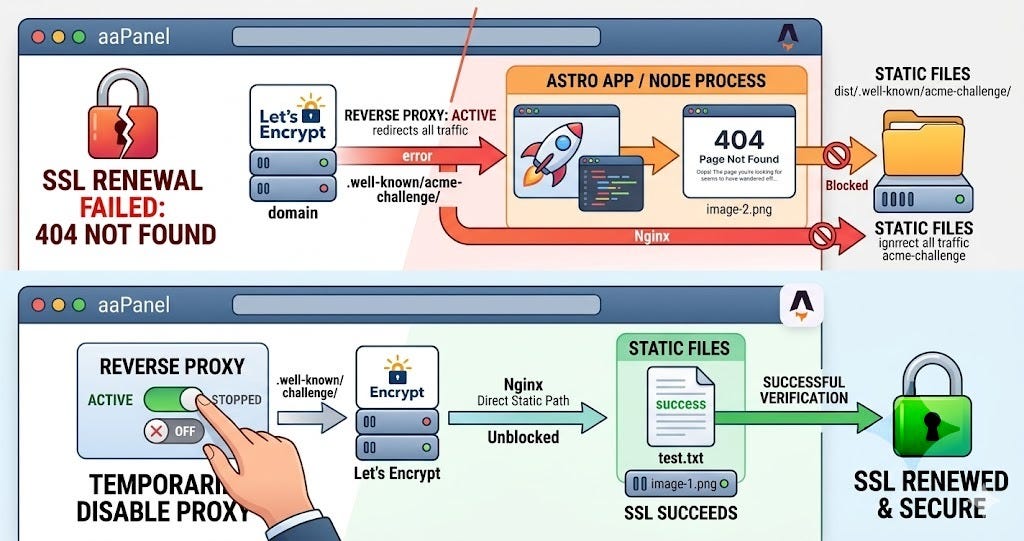
If you're hosting an Astro site on aaPanel using astro preview or a custom Node server, you might run into issues when trying to renew your SSL certificate.
Here is a quick walkthrough of a common 404 error during the ACME challenge and how to fix it.
The Problem
When attempting to renew the Let's Encrypt SSL certificate in aaPanel, the process fails with a verification error:
Invalid response from http://.../.well-known/acme-challenge/...: 404
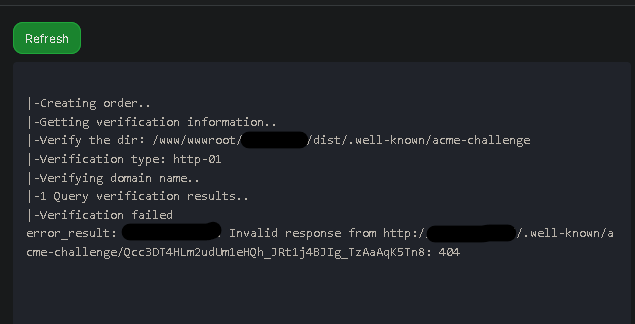
The Investigation
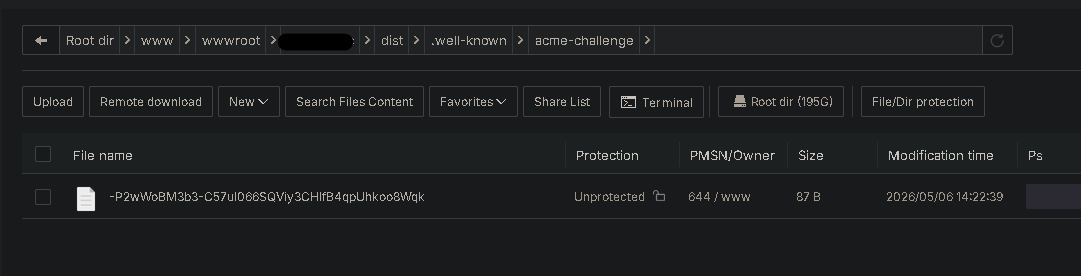
To understand why this was happening, I checked the server's file system. aaPanel correctly created the verification files inside the dist/.well-known/acme-challenge directory.
To test if the files were accessible from the web, I created a simple test.txt file in the same directory.
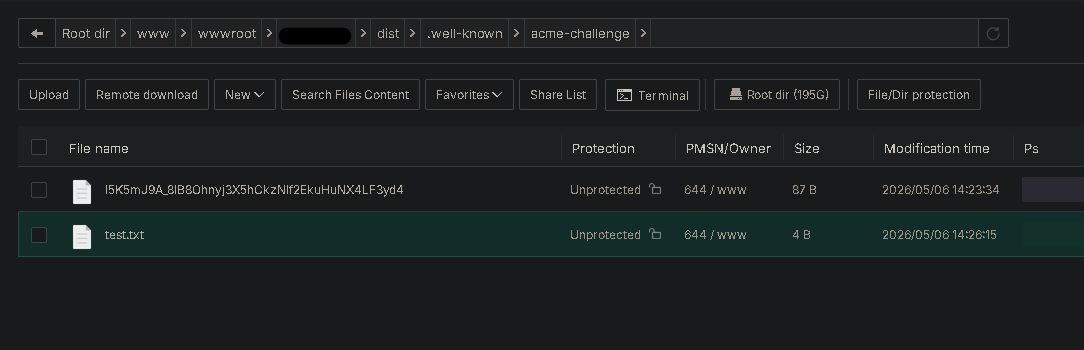
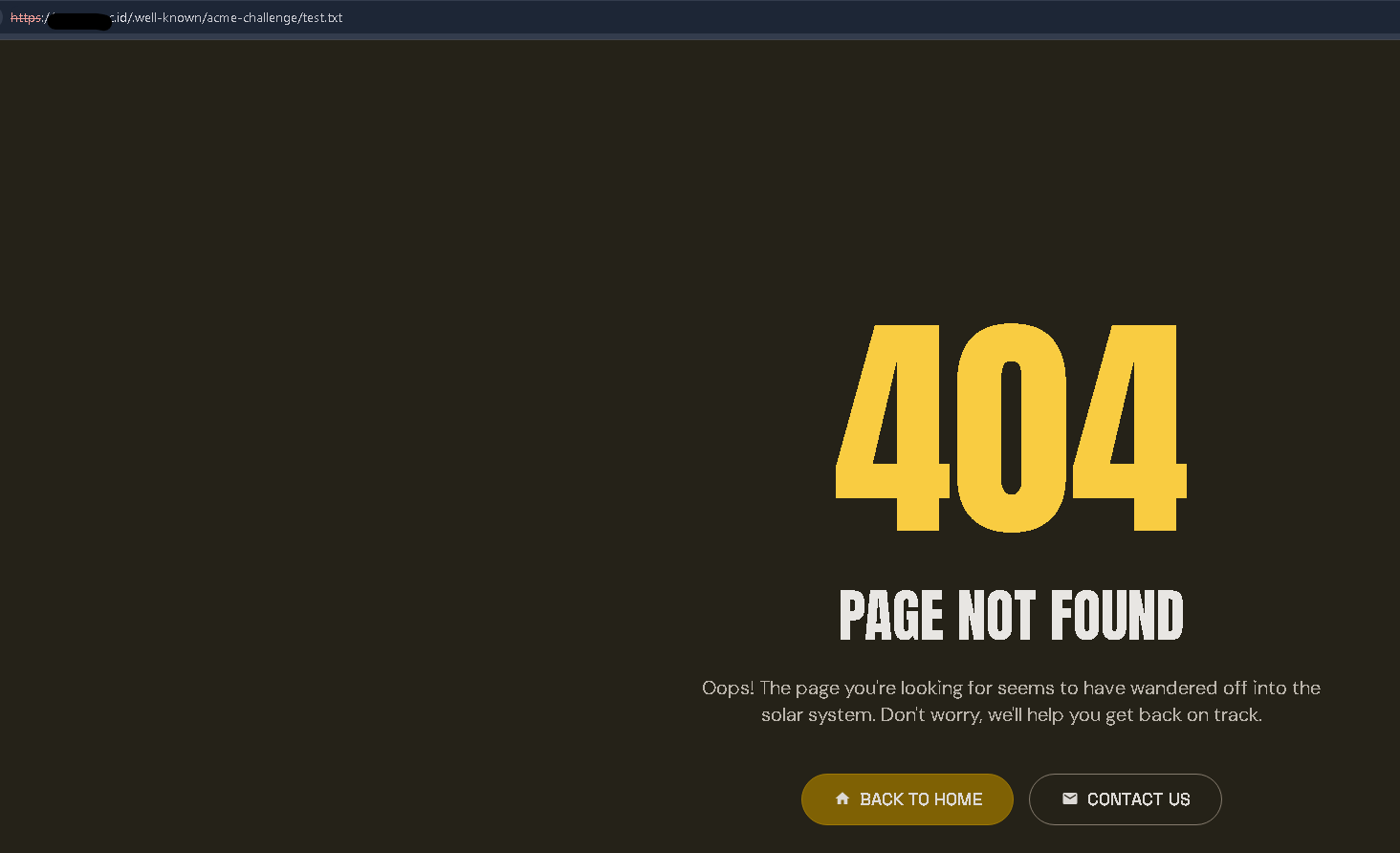
However, when I tried to access test.txt in the browser, I didn't get the text file. Instead, I got my Astro site's custom 404 "Page Not Found" screen!
The Root Cause
This pointed directly to a routing issue. The site is running as a Node project using the astro preview command on port 4323.
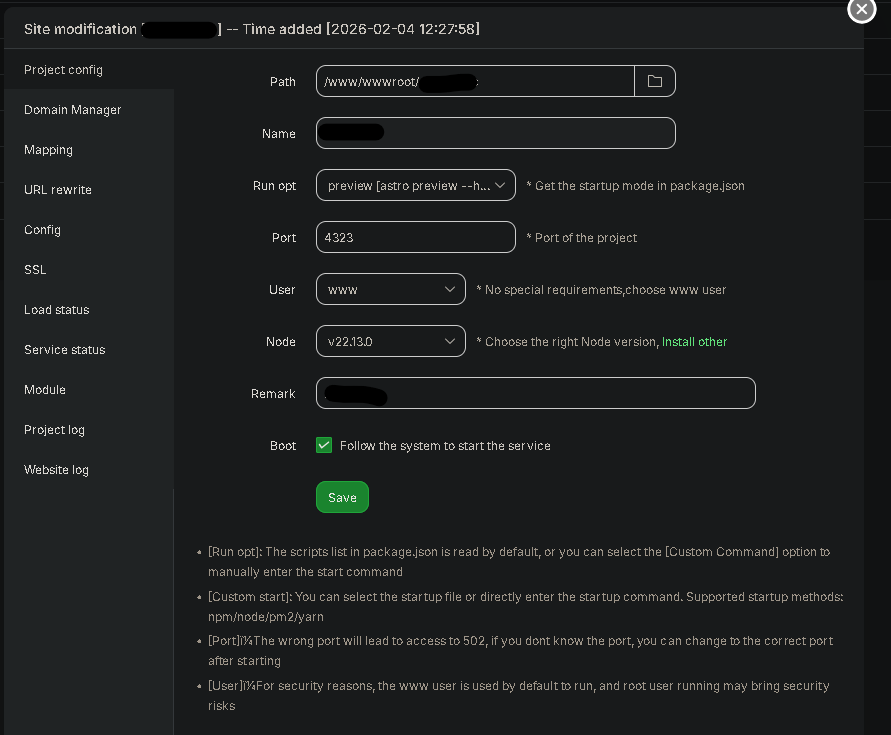
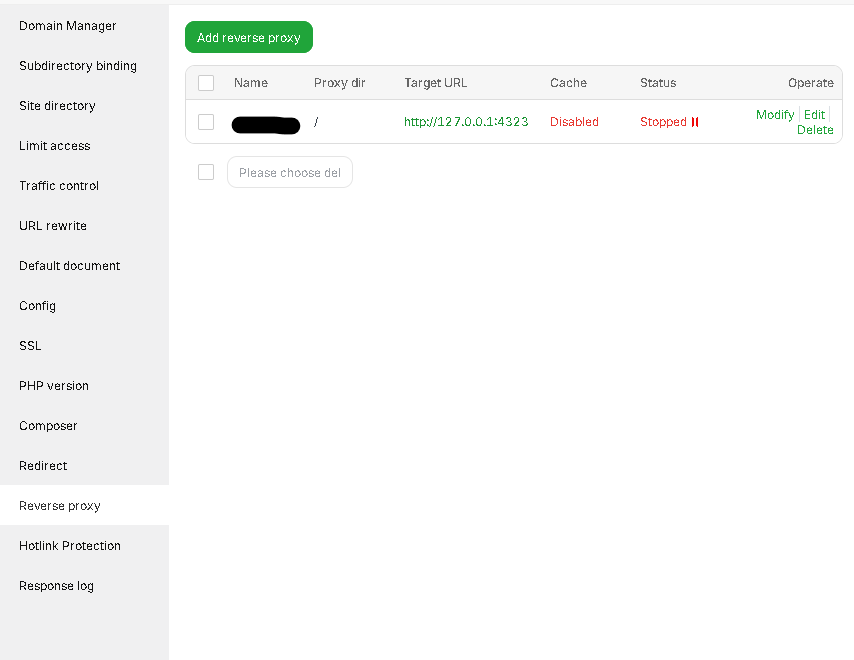
To expose this local port to the internet, aaPanel uses a Reverse Proxy. The reverse proxy catches all incoming traffic for the domain and forwards it to the Astro server.
Because Astro doesn't know anything about the /.well-known/acme-challenge/ path, it rightfully returns a 404 page. The request never reaches the static files sitting on the hard drive.
The Solution
The fix is surprisingly simple. You just need to let the main web server (Nginx/Apache) handle the SSL verification traffic instead of passing it to Astro.
Go to your site settings in aaPanel.
Navigate to the Reverse proxy tab.
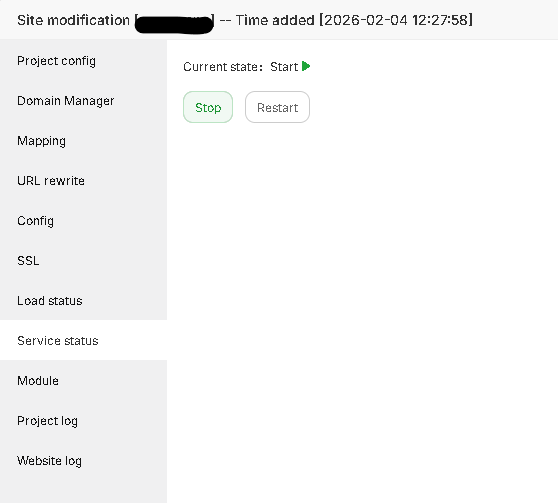
Temporarily Stop or Disable the proxy.
Go back to the SSL tab and click Renew (or apply for the certificate again).
With the proxy disabled, the server will directly serve the static files from the dist directory, allowing Let's Encrypt to verify your domain successfully.
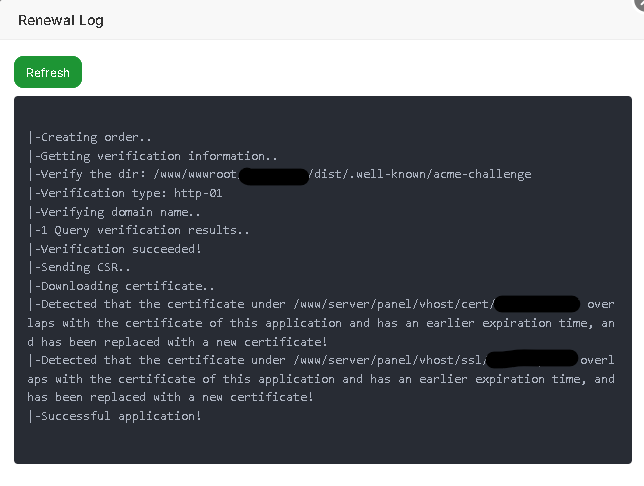
Once the certificate is renewed and applied, simply go back and Start your Reverse Proxy again to bring your Astro site back online!
Hope it's useful!